Oh… You know what? It’s always fun tweaking graphics settings in Delta Force: Hawk Ops, and we’ve made it super simple. Whether you’re going for max FPS or smooth gameplay on a potato PC, this guide has you covered. Don’t let lag or stutters ruin your game—that’s why you need this Delta Force: Hawk Ops Graphics Settings guide!
What’s in this guide?
- Best settings for stable FPS and smooth gameplay;
- How to tweak for high-end rigs or potato PCs;
- Tips to cut lag, boost visuals, and win more fights.
You may also interested in:
- Delta Force Overview & Release Date
- Delta Force Operators Guide
- Delta Force: Hawk ops Graphics settings
- Delta Force Hawk Ops Vehicle Overview
- Delta Force: Hawk ops Beginner’s guide
- Delta force Havoc Warfare Guide
- Delta Force: Hawk Ops Rank guide
- Delta force: Hawk Ops Weapons Tier List
- Delta force: Hawk ops Hazard operations Guide
Main rules about changing settings in the Delta force
Delta Force: Hawk Ops runs best when you balance FPS, clarity, and responsiveness. High FPS is cool, but stability wins fights. Tweak wisely and don’t go overboard. Use these principles to find the perfect setup for your rig and gameplay.
- Stable FPS is King — A steady 60 FPS is better than 100 FPS with stutters. Smooth gameplay > flashy numbers.
- See Far, Shoot Far — Keep draw distance and texture quality high enough to spot enemies, but don’t go overboard.
- No Fake Frames — Turn off DLSS or FSR if they add lag. Real frames are better for fast moves.
- Cut the Clutter — Motion blur, shadows, and global illumination can go low or off. Clean visuals help focus.
- Balance for Battles — Pick settings that give stable FPS and good visuals. Don’t sacrifice gameplay for graphics.
Delta Force Graphics settings | What can we change
Delta Force: Hawk Ops lets you tweak a ton of graphics settings to find the sweet spot between FPS and visuals. Want smooth gameplay? Use the Best Delta Force Hawk Ops PC settings for FPS. Got a potato PC? Optimize for low-end rigs with Delta Force Hawk Ops FPS boost settings. Disable motion blur, tweak textures, and turn off ray tracing if needed. The goal? Maximize performance without frying your CPU or GPU. Let’s break it all down.
| Setting | What It Does | Impact on FPS | Main Load |
| Display Mode | Fullscreen or Borderless Windowed. | Fullscreen gives better FPS. | GPU |
| Resolution Scale | Adjusts internal rendering resolution. | Lower = Better FPS. | GPU |
| V-Sync | Removes screen tearing. | Off = Higher FPS. | CPU/GPU |
| Default FOV | Changes field of view (90-120). | Higher = Lower FPS. | GPU |
| Graphics Preset | Low, Medium, High, Custom. | Low = Max FPS. | GPU/CPU |
| Weapon Motion Blur | Adds blur to weapons. | Off = Better FPS. | GPU |
| Reflections | Adjusts reflection detail. | Low = Higher FPS. | GPU |
| Texture Filtering | Sharpens textures. | Low = Better FPS. | GPU/Memory |
| Particles | Controls effects like smoke. | Low = Higher FPS. | GPU |
| Distortion | Wavy heat effects. | Low = Higher FPS. | GPU |
| Scene Details | Controls world object detail. | Low = Higher FPS. | CPU/GPU |
| Depth of Field | Blurs distant objects. | Off = Better FPS. | GPU |
| Global Illumination Quality | Adjusts light bounce quality. | Low = Higher FPS. | GPU |
| Shaders | Determines shader quality. | Low = Higher FPS. | GPU |
| Textures | Controls texture resolution. | Medium = Balanced FPS. | GPU/Memory |
| Shadow Quality | Adjusts shadow detail. | Low = Better FPS. | GPU |
| Volumetric Fog | Fog density and quality. | Low = Higher FPS. | GPU |
| Animation Quality | Sets animation detail level. | Medium = Balanced FPS. | CPU |
| DLSS / FSR | AI upscaling for better FPS. | Balanced = Best FPS/Visuals. | GPU |
| Ray Tracing | Advanced lighting effects. | Off = Max FPS. | GPU |
| Frame Rate Cap | Caps the max FPS. | Unlimited = Best FPS. | CPU/GPU |
| Sharpness | Enhances clarity of textures. | Minimal Impact. | GPU |
| Super Resolution Mode | Uses AI to upscale images. | On = Higher FPS. | GPU |
| Nvidia Reflex | Reduces input lag. | Minimal Impact. | CPU |
| Aspect Ratio | Adjusts screen dimensions. | No Impact. | N/A |
| Brightness | Adjusts screen brightness. | No Impact. | N/A |
| Auto Brightness | Automatically adjusts brightness. | No Impact. | N/A |
| Minimap Icon Scale | Adjusts minimap icon size. | No Impact. | N/A |
| Monitor | Selects the gaming monitor. | No Impact. | N/A |
| Display Adapter | Chooses the default adapter. | No Impact. | N/A |
| Show Aspect Ratio | Adjusts screen proportions. | No Impact. | N/A |
| Rendering Scale | Adjusts resolution rendering. | Lower = Higher FPS. | GPU |
| Shadow Map | Improves shadow accuracy. | Low = Higher FPS. | GPU |
| Scene View Details | Enhances distant objects. | High = Lower FPS. | GPU |
| Graphics Style | Sets overall graphical look. | Depends on Preset. | GPU |
Community Tips for Delta Force: Hawk Ops
For Delta Force: Hawk Ops, players suggest using DLAA over DLSS for superior image clarity, reducing ghosting and blur, although it comes at the cost of FPS gains. Avoid DLDSR as it may increase latency, which is crucial for competitive gameplay. Using tools like Nvidia Inspector enables quick tweaks without additional software. To further enhance performance, disable Ambient Occlusion in the config file to prevent pixelation. Below is a table of recommended settings for Delta Force: Hawk Ops:
| Setting | Recommendation |
| Ambient Occlusion | Medium or Off |
| Weapon Blur | Off |
| Reflections | Low |
| Texture Filtering | Low |
| Particles | Extreme or Low |
| Shadows | Extreme or Low |
| Super Resolution | Off or DLSS on Quality |
| Nvidia Reflex | On |
| Shader Cache Size | Max (via Nvidia Inspector) |
| Staging Cache Size | Max (via Nvidia Inspector) |
Delta Force Graphics settings | Common in game optimizations
Want smooth gameplay and killer FPS in Delta Force: Hawk Ops? Here’s the deal — tweaking the right settings is your secret weapon. Follow this Delta Force Hawk Ops Graphics Settings Guide to optimize performance, fix stuttering, and boost FPS even on a potato rig. Turn off motion blur, keep ray tracing disabled, and balance your resolution scale. Whether you’re battling in Tactical Turmoil Mode or chasing high FPS, these settings have you covered.
| Setting | Best Option |
| Display Mode | Borderless Windowed |
| V-Sync | Off |
| Default FOV | 105 |
| Graphics Preset | Custom |
| Texture Filtering | High |
| Weapon Motion Blur | Off |
| Ray Tracing | Off |
| Volumetric Fog | Low |
| Global Illumination | Low |
| Shadow Map | Low |
| Scene Details | Medium |
| Rendering Scale | 66% |
| Super Resolution | DLSS Balanced (Nvidia) / FSR Perf |
| Gunner Sensitivity | 6 |
| Infantry FOV | 85 |
| Vehicle FOV | 100 |
Delta Force Graphics settings | FSR with DLSS comparison
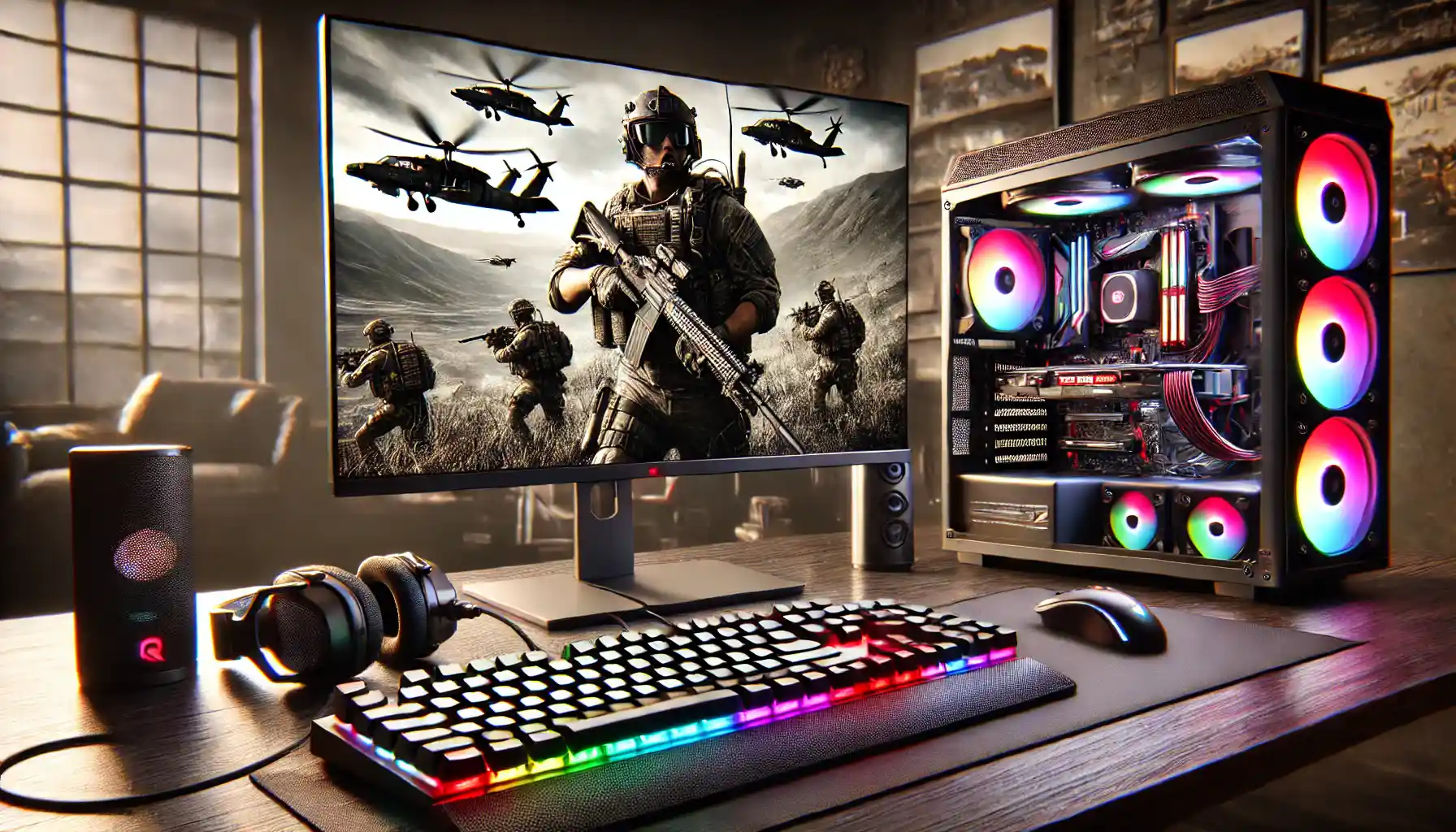
For Delta Force: Hawk Ops, DLSS Balanced is better for smoother FPS and sharper visuals on NVIDIA GPUs, while FSR Performance is best for AMD users needing maximum FPS.
| Setting | Best Option |
| DLSS or FSR | DLSS Balanced (NVIDIA) / FSR Perf (AMD) |
| Default Weapon Motion Blur | Off |
| Auto Display Mode | On |
| Global Illumination Quality | Low |
| High Textures | On |
| Medium Scene View Details | On |
| Vertical Input | Custom (Adjust Per Control Type) |
| Scope Magnification Adapts Automatically | On |
| Monitor Distance Coefficient | 1.33 |
For Delta Force: Hawk Ops, smooth FPS comes down to smart use of either DLSS or FSR. DLSS Balanced is king for NVIDIA users, balancing sharp visuals with smooth gameplay, while FSR Performance Mode gives AMD users a hefty FPS boost, though visuals might soften. For both setups, keep default weapon motion blur off, auto display mode on, and balance settings like medium scene view details and low distortion for optimal performance. Adjust gunner vertical input and aircraft vertical input sensitivity for tailored control. Whether tweaking the monitor distance coefficient or turning off invert infantry vertical input, every detail counts.
Delta Force Graphics settings | extremely potato mode graphics 500+ FPS
Want Delta Force: Hawk Ops to run smooth as butter on a potato PC? Follow this guide for ultra-low settings and insane FPS gains. No fluff—just results.
| Setting | Value | Notes |
| Fullscreen | ON | Best FPS |
| Native Resolution | Monitor’s native | Lower if FPS tanks |
| Refresh Rate | Max available | |
| V-Sync | OFF | Use G-Sync if available |
| Reflections | Low | No visual difference |
| Texture Filtering | Low | |
| Ambient Occlusion | Medium | Adds depth to shadows |
| Particles | Low | No real difference |
| Scene Details | Low | |
| View Distance | Extreme or Low | Choose based on preference |
| Render Scaling | 100% | Adjust only if FPS tanks |
| Depth of Field | OFF | Buggy; set off |
| Global Illumination Quality | Low or High | High = brighter, Low = dimmer |
| Shadows | Low | |
| Post-Processing | Low | |
| Volumetric Fog | Low | |
| Animation Quality | Low | |
| Super Resolution Mode | OFF | Crisp gameplay |
Step-by-Step Instructions
- Prep Work — Clean the House
- Disable Steam Overlay — Steam > Settings > In-Game > Uncheck “Enable Steam Overlay.”
- Check Game Files Path — Steam Library > Right-click game > Manage > Browse local files. Copy the folder path for later.
- Admin Rights Boost
- Run as Admin — Locate DeltaForce.client.exe > Right-click > Properties > Compatibility > Check “Run as Administrator.”
- Windows Graphics Settings
- Enable HAGS — Search “Graphics Settings” > Enable Hardware Accelerated GPU Scheduling.
- Set Performance Mode — Add DeltaForce.client.exe and WinShipping.exe > Set both to High Performance.
- Disable Xbox Game Bar — Search “Xbox Game Bar” > Turn off.
- NVIDIA Control Panel Tweaks
- Low Latency Mode OFF — Add WinShipping.exe > Manage 3D Settings > Turn Low Latency Mode OFF. Reflex handles this in-game.
- TAA Off for Crisp Graphics
- Go to Engine.ini (Saved\Config\WindowsClient folder) > Add:
[SystemSettings]
r.TemporalAAEnabled=0
- Save and set Engine.ini to Read-Only.
- CPU Fix for Intel Users
- Check CPU usage in Task Manager during gameplay.
- If only using 4 cores, fix affinity:
- Task Manager — Right-click WinShipping.exe > Details > Set Affinity > Select All Processors.
- Process Lasso (Optional) — Adjust affinity for all cores.
- In-Game Settings — Potato Mode
- Display Settings
Fullscreen: ON
Native Resolution: Your monitor’s resolution
Refresh Rate: Max
V-Sync: OFF - Graphics Settings
- Reflections — Low
- Texture Filtering — Low
- Ambient Occlusion — Medium
- Particles — Low
- Scene Details — Low
- View Distance — Extreme or Low
- Render Scaling — 100%
- Depth of Field — OFF
- Global Illumination Quality — Low or High
- Shadows — Low
- Post-Processing — Low
- Volumetric Fog — Low
- Animation Quality — Low
- Super Resolution Mode — OFF
- Display Settings
- Extra Tips
- Cap FPS if stuttering persists.
- Turn on in-game FPS counter for monitoring.
Delta Force Graphics settings | Optimal settings
These tweaks work for both low-end PCs and high-end rigs. Turn off motion blur, lower settings like reflections and shadows, and ditch ray tracing for max performance. Below is a table with the best settings for a stable, competitive edge.
| Setting | Best Option |
| Graphics Preset | Custom |
| Graphics Style | Default |
| Resolution Scale | 66 |
| V-Sync | Off |
| Field of View (FOV) | 90 (Default) |
| Motion Blur | Off |
| Reflections | Low |
| Texture Filtering | High |
| Particles | Low |
| Shadows | Low |
| Shadow Map | Low |
| Volumetric Fog | Low |
| Depth of Field | Off |
| Global Illumination | Low |
| Ray Tracing | Off |
| Post-Processing | Low |
| Animation Quality | Medium |
| NVIDIA Reflex | On (if NVIDIA GPU) |
Conclusion
To make Delta Force: Hawk Ops run smooth and crispy, you need smart settings. Balance FPS and visuals, cut unnecessary clutter, and disable laggy features like motion blur and ray tracing. Whether you’re on a high-end rig or a potato PC, tweak wisely.
For potato mode, go ultra-low on shadows, reflections, and particles. Keep FPS stable with fullscreen mode and no V-Sync. For max FPS on better PCs, focus on smoothness — turn on NVIDIA Reflex, keep texture filtering high, and stick with balanced FOV.
Epiccarry: best wow boost and coaching services
Frequently Asked Questions
What’s the golden rule for Delta Force graphics?
Stable FPS > High FPS. Smooth wins fights. Balance visuals with performance for your rig.
What should I prioritize for max FPS?
Cut motion blur, shadows, and ray tracing. Lower texture filtering and scene details if needed. Focus on stability over flashy effects.
What’s the deal with DLSS vs. FSR?
NVIDIA users — Go DLSS Balanced for sharp visuals and smooth FPS.
AMD users — FSR Performance mode for a hefty FPS boost, but expect softer visuals.
How do I optimize for a potato PC?
Use Potato Mode settings:
- Fullscreen: ON
- V-Sync: OFF
- Shadows, Volumetric Fog, Particles, Depth of Field — LOW or OFF
- Render Scaling: 100%
Does running in Borderless Windowed impact performance?
Yes. Fullscreen generally gives better FPS, but Borderless Windowed is more stable for quick app switching.
Should I use Ray Tracing or Global Illumination?
Nope! Turn them OFF for max FPS.
Can I still have decent visuals on low settings?
Yes! Just keep texture filtering and resolution scale balanced. Play around to find your sweet spot.
Is TAA necessary?
Not really. Turn it off via Engine.ini for sharper gameplay.
How do I get the best FPS on a potato PC?
Use potato mode settings — fullscreen, low shadows, low reflections, and motion blur off. Disable V-Sync and ray tracing. Keep it simple.
What’s the best FOV for combat?
Start with 90 for balance. Go higher for a wider view but lower if FPS drops.
Why does my game still stutter with high FPS?
FPS spikes can cause stuttering. Cap FPS to a stable number and enable NVIDIA Reflex for low input lag.
Should I turn on DLSS or FSR?
Use DLSS Balanced for NVIDIA or FSR Performance for AMD. They boost FPS but test to avoid visual blur.
How can I adjust mouse sensitivity?
Tweak hip fire aim sensitivity and 3rd person mouse sensitivity in settings to match your play style.
Why is my turret stuck?
If the red vehicle turret locked error pops up, check hawk ops screen settings or recalibrate controls.
Do shadows matter for performance?
Shadows eat FPS. Set them to low for smoother gameplay unless you love fancy lighting.
What’s the best resolution scale?
66% is a sweet spot. Drop it lower only if FPS is tanking.
How do I fix laggy inputs?
Enable NVIDIA Reflex or lower vertical sensitivity and performance parameters.